Previewing and Publishing Content
Overview
This guide explains how to preview and publish Instructor-Led Training (ILT) content in MAXRES Construct. It includes instructions for previewing courses with metadata filters, publishing content to the platform, and generating Word outputs such as Student Manuals and Instructor Guides.
Objectives
By following this guide, you will:
- Preview courses using metadata filters.
- Publish course content to the platform.
- Generate Word outputs, including Student Manuals and Instructor Guides.
Requirements
- Platform Access: Permissions to edit and publish content in MAXRES Construct.
- Job Roles and Metadata Filters: Ensure these are configured for the course content.
Roles
This guide is designed for:
- Course Developers
- Content Creators
- Instructional Designers
Process
1. Previewing Content
To preview your course:
-
Click the Preview Button
-
In the editing view, click the Preview button.
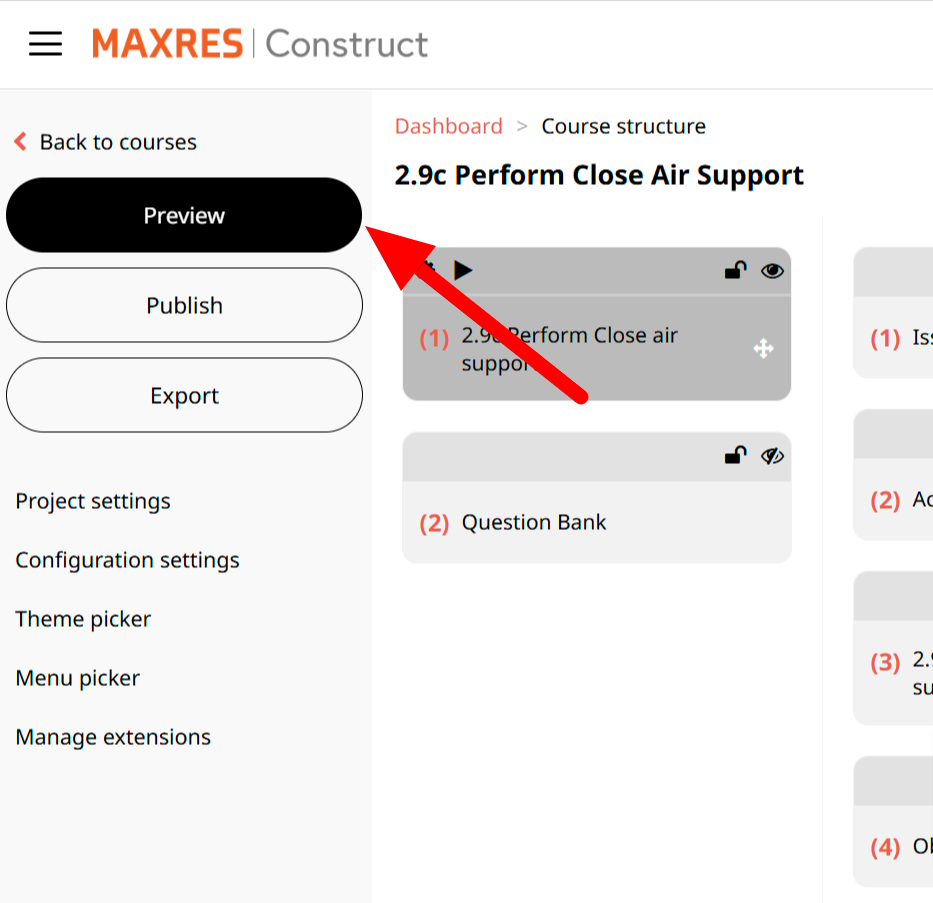 Fig. 1: Preview Button
-
-
Apply Filters
-
Select filters for the job roles in the Apply Metadata Filters section.
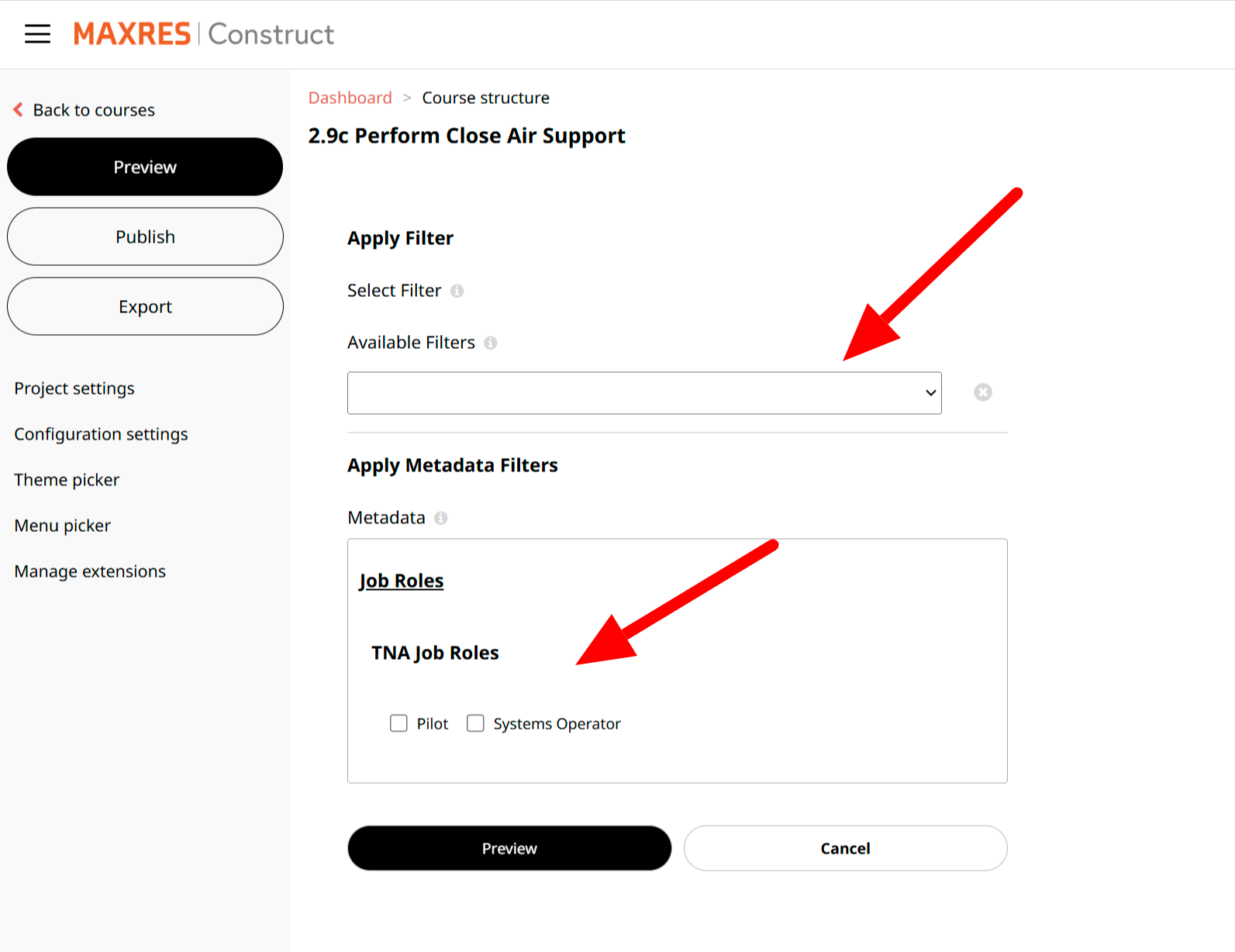 Fig. 2: Selecting Filters
-
-
Select Metadata Filters
-
Choose job roles for which the course is being previewed.
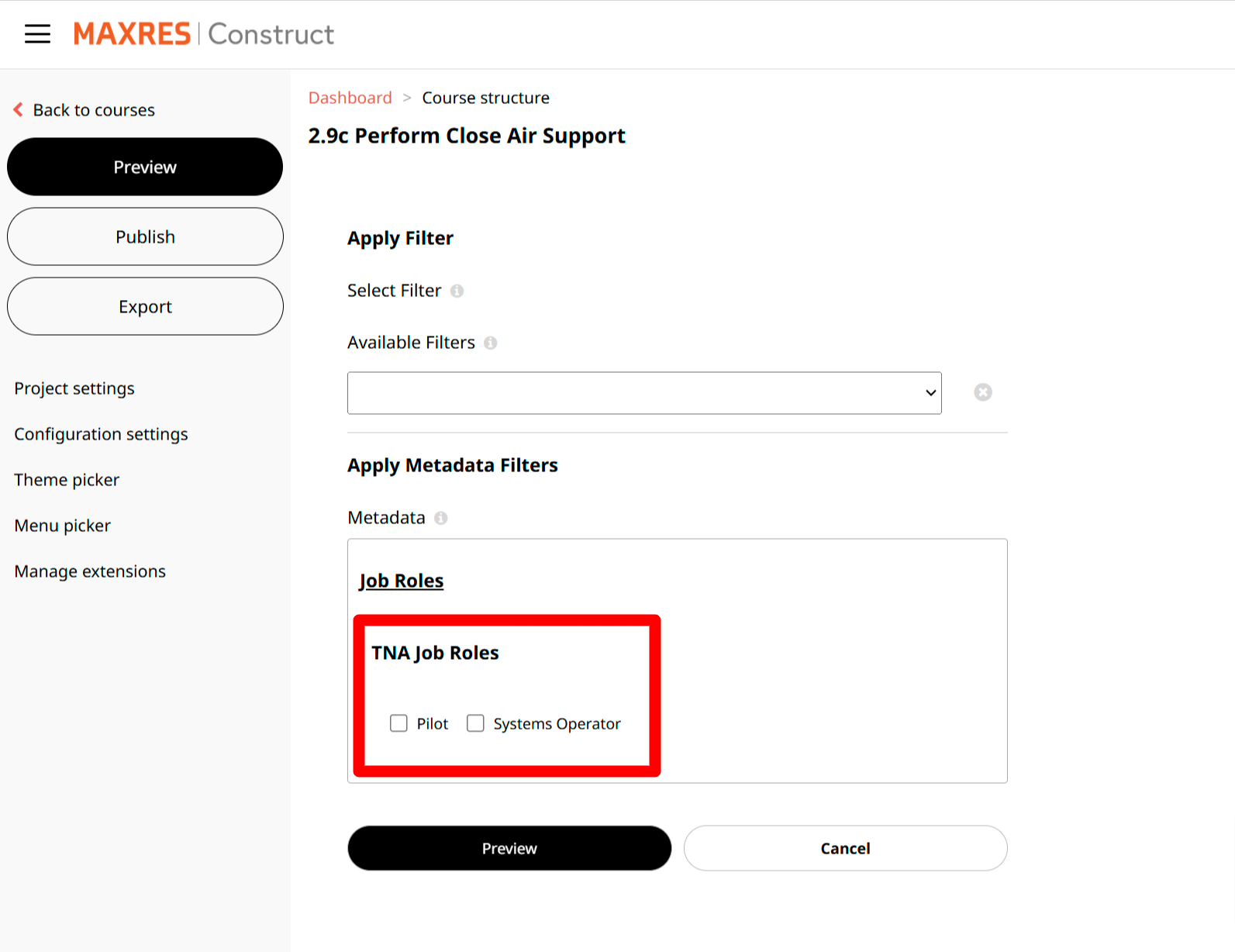 Fig. 3: Metadata Selection
-
-
Preview or Cancel
-
Click Preview to view the course or Cancel to return to the editing view.
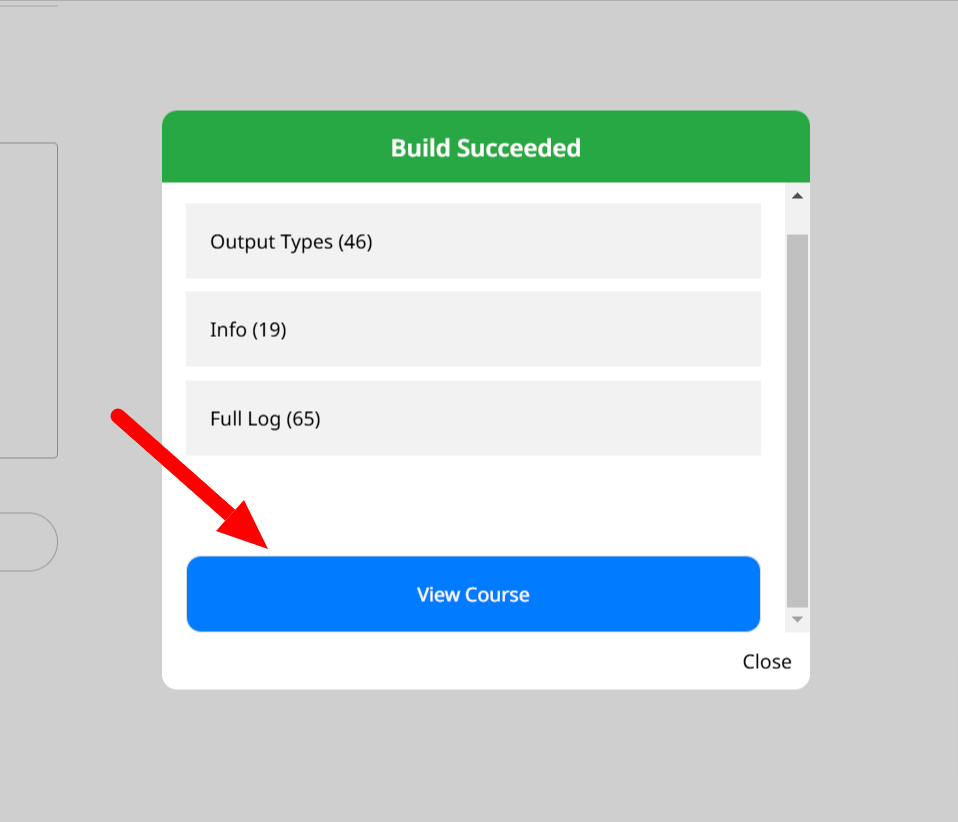 Fig. 4: Launch Preview Window
-
2. Fast Preview
For a quicker review of individual content items:
- Use the Play Button
-
Click the Play button on the content object card to open the presentation view for that item.
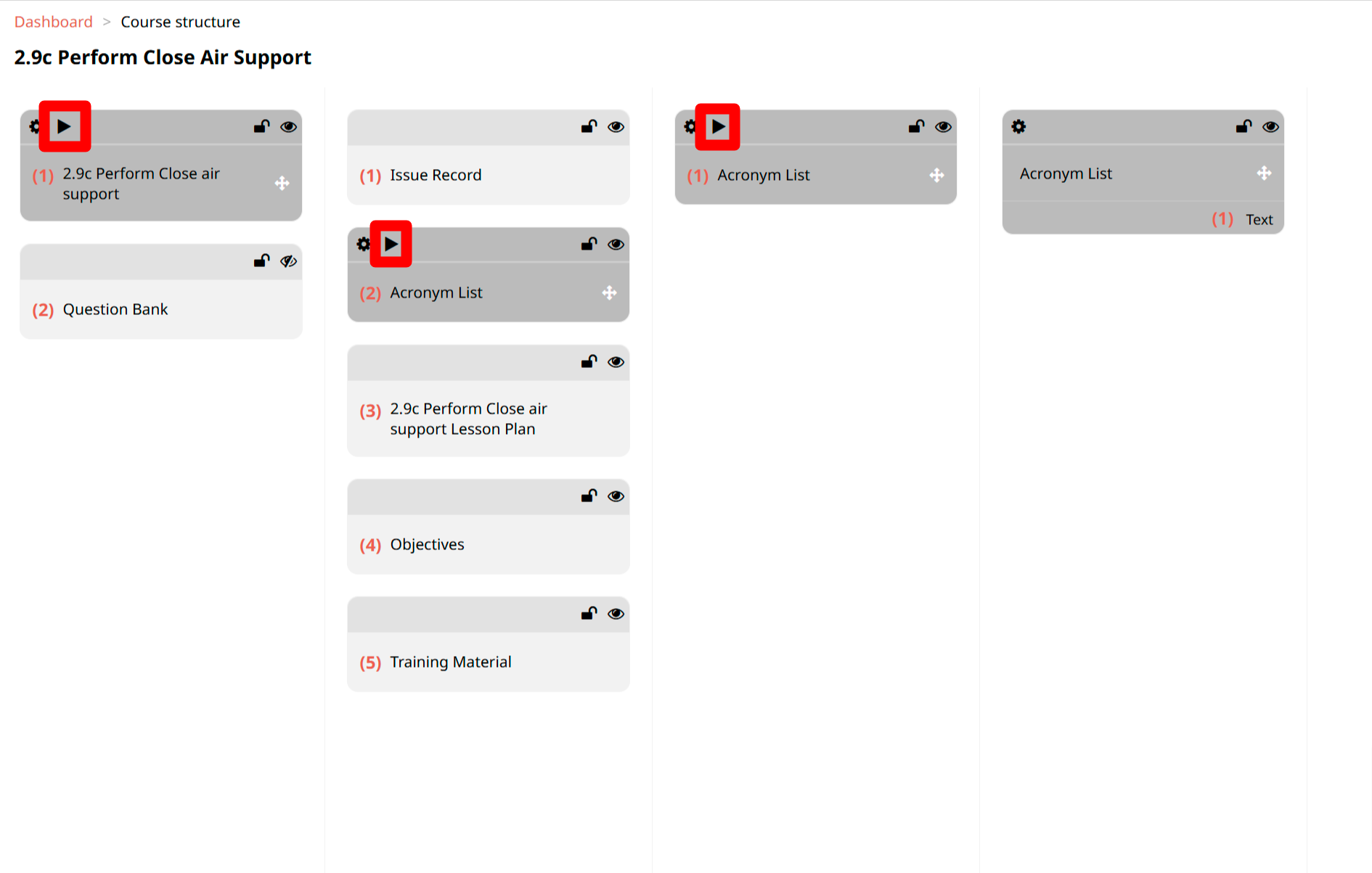 Fig. 5: Fast Preview Button
-
3. Publishing Content
3.1. Publishing Courses
To publish a course:
-
Click the Publish Button
-
In the editing view, click the Publish button.
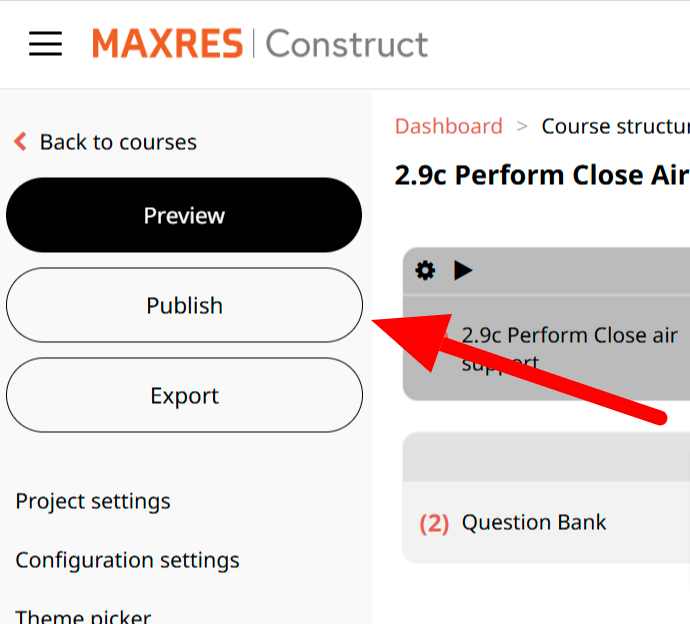 Fig. 6: Publish Button
-
-
Apply Filters
-
Select filters for job roles in the Apply Metadata Filters section.
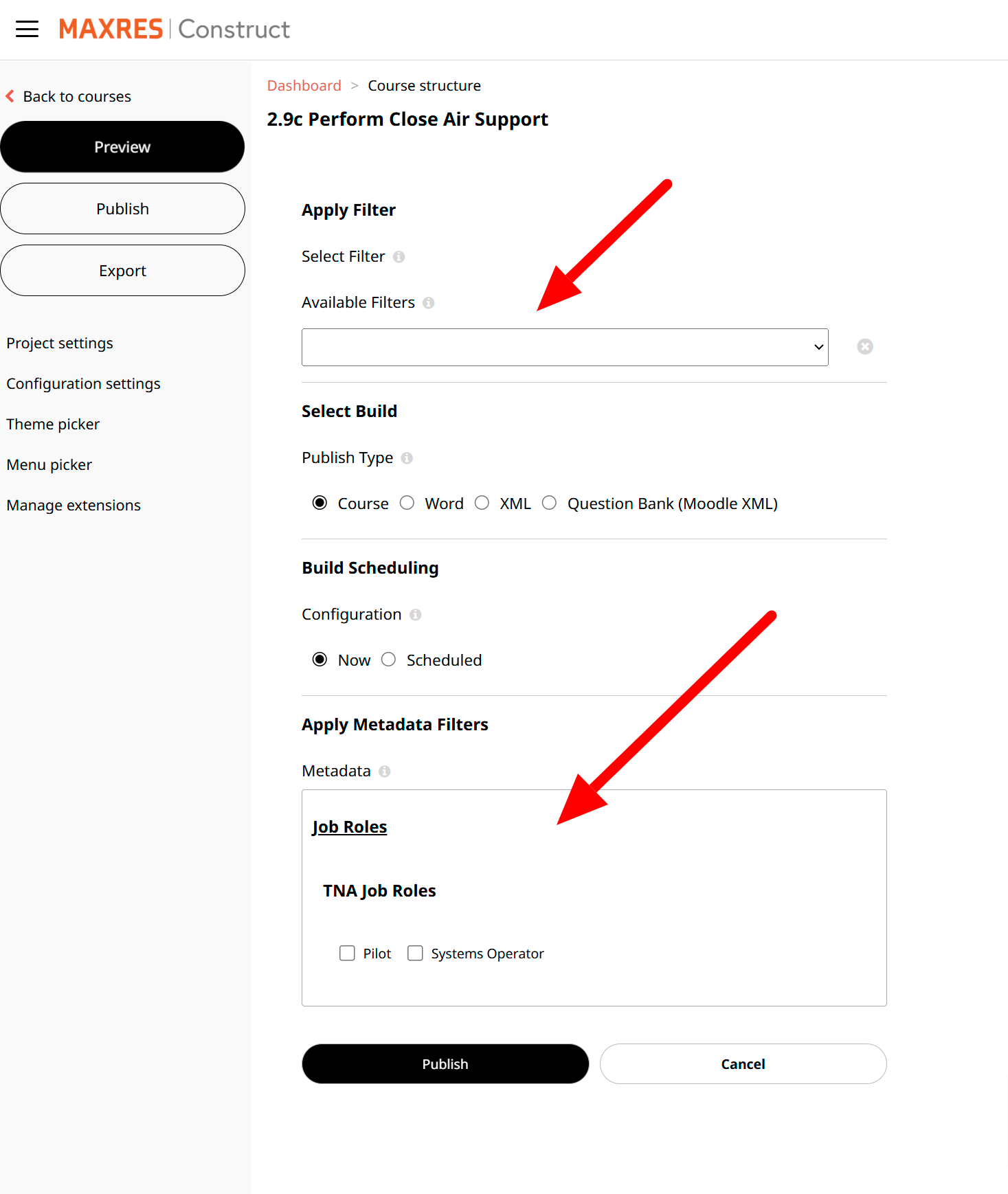 Fig. 7: Filter Selection
-
-
Choose Course Option
-
Select the Course radio button to publish the course.
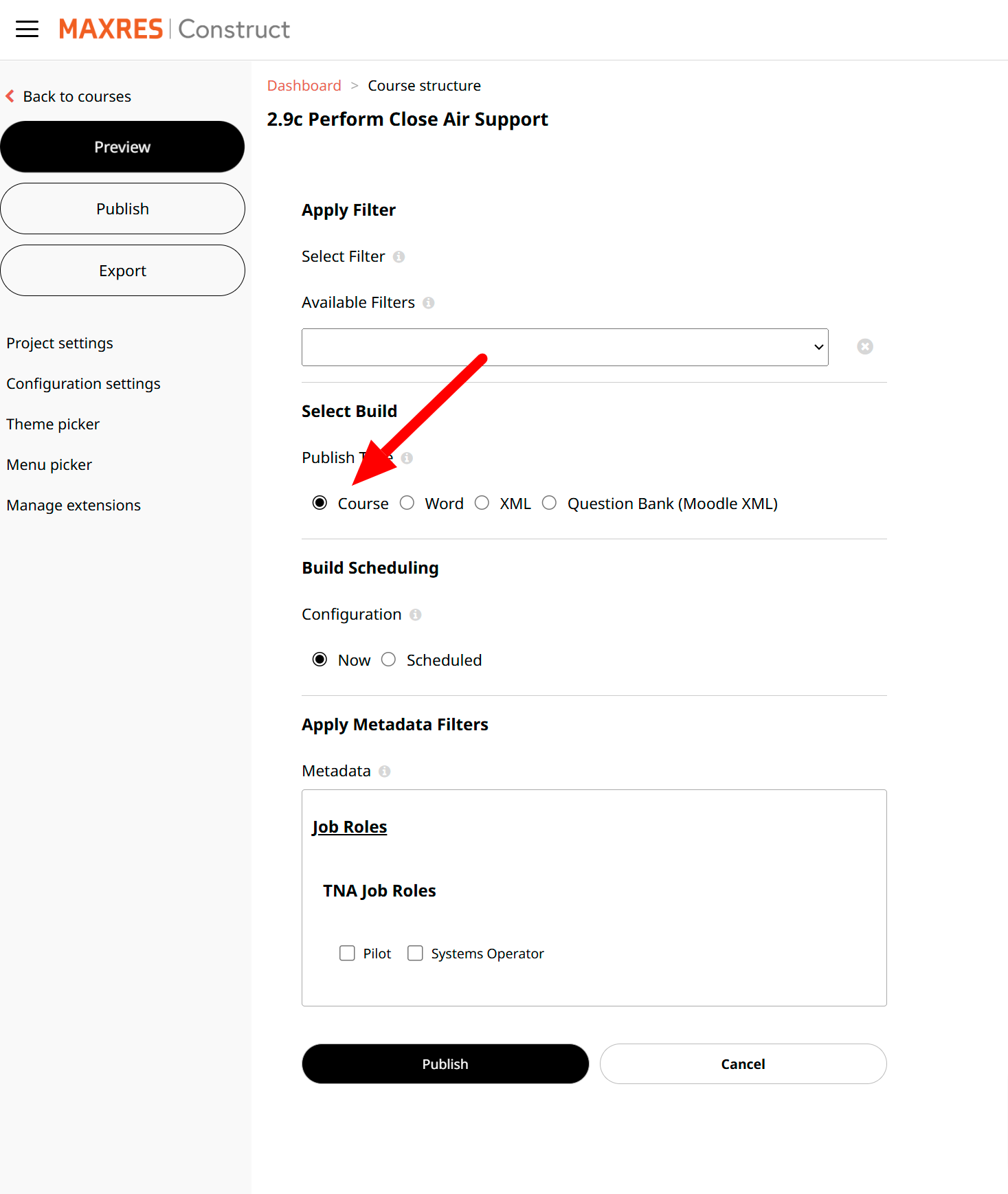 Fig. 8: Publish Course
-
-
Select Metadata Filters
-
Choose job roles for which the course is being published.
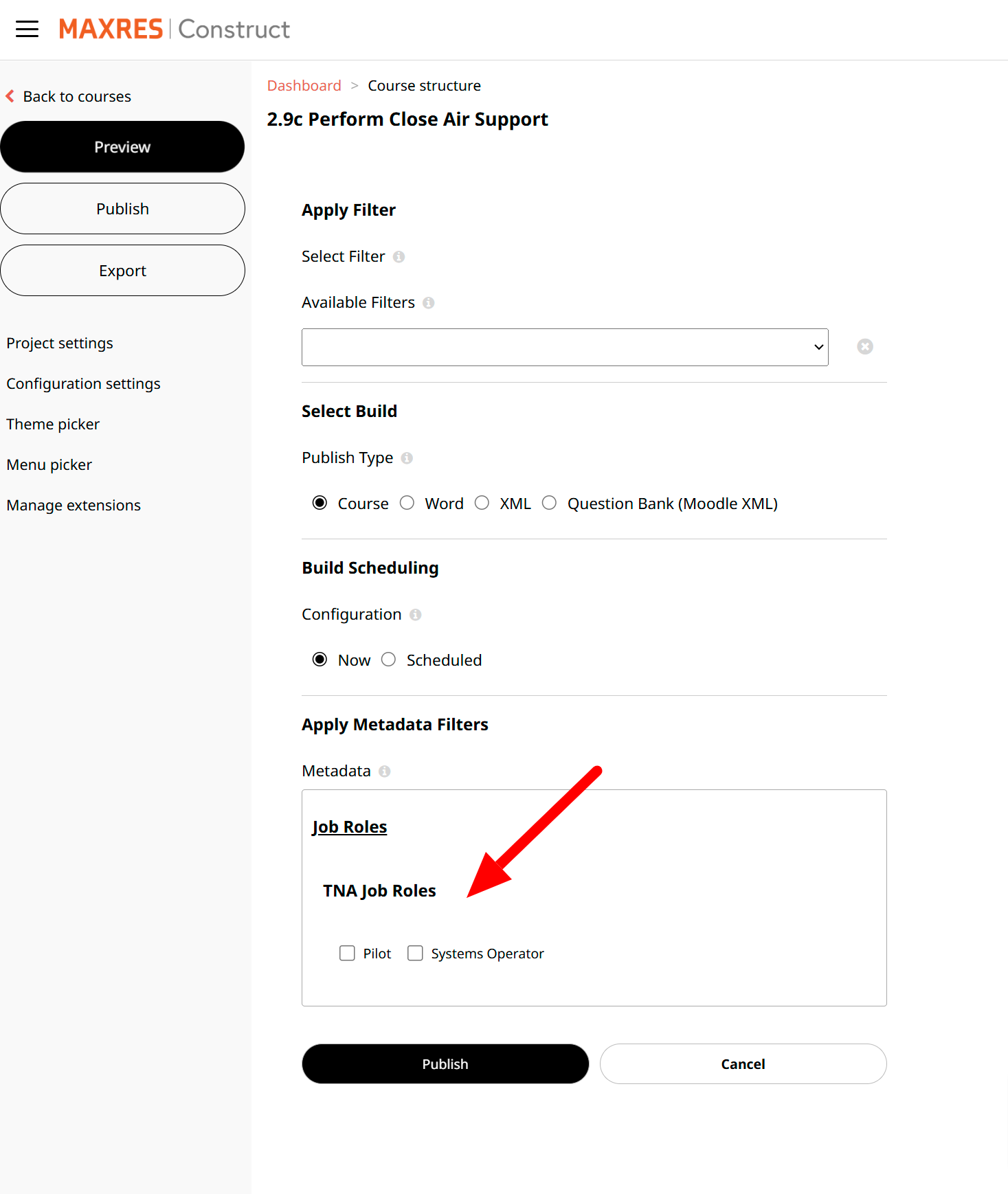 Fig. 9: Metadata Selection
-
-
Publish or Cancel
- Click Publish to finalize, or Cancel to return to the editing view.
3.2. Publishing Word Outputs
To publish as a Word document:
-
Click the Publish Button
-
In the editing view, click the Publish button.
Fig. 10: Publish Button
-
-
Apply Filters
-
Select filters for job roles in the Apply Metadata Filters section.
Fig. 11: Filter Selection
-
-
Select Word Option
- Choose the Word radio button.
-
Choose Output Type
-
Select Student Manual or Instructor Guide.
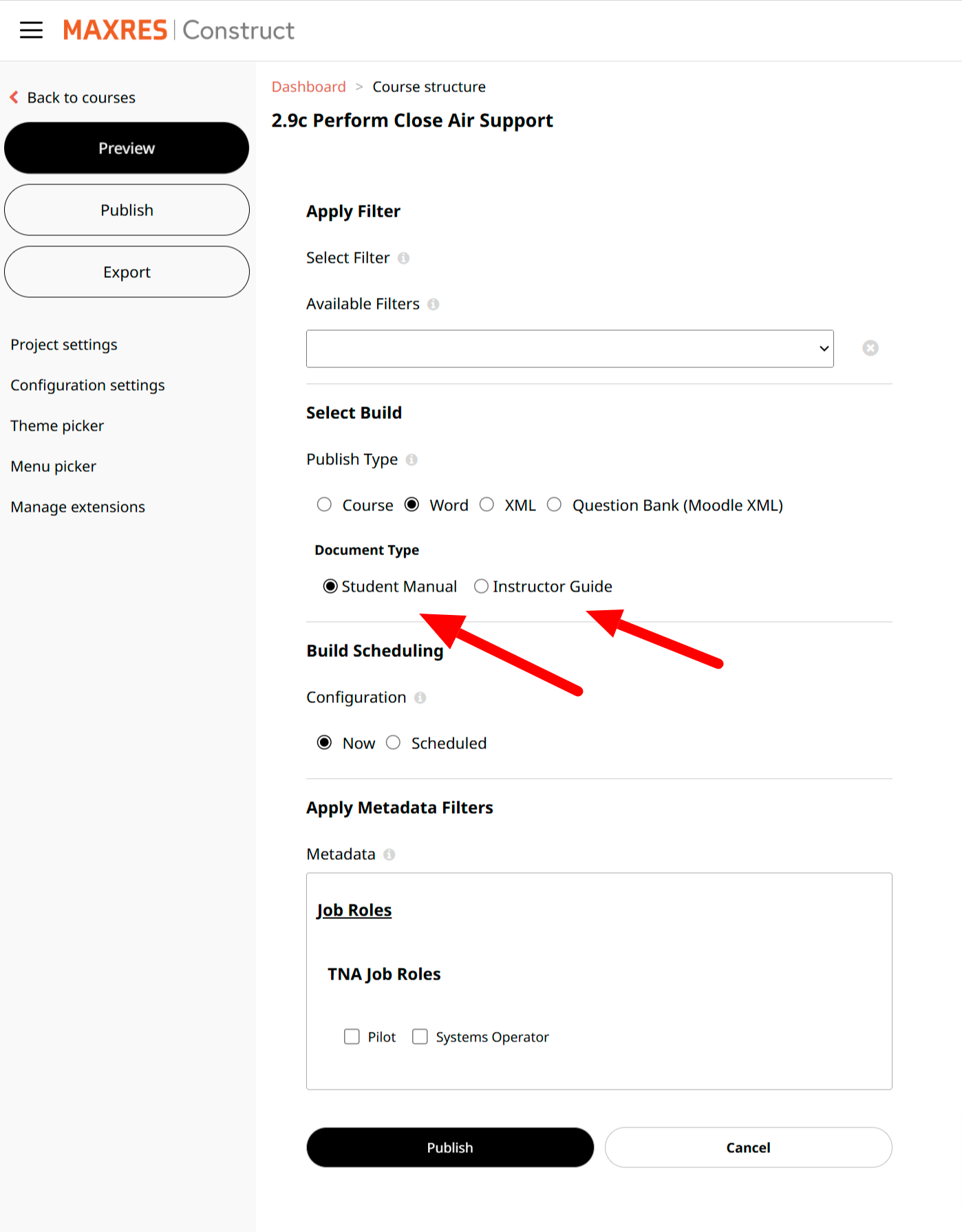 Fig. 12: Publish to Word
-
-
Select Metadata Filters
-
Choose job roles for the Word output.
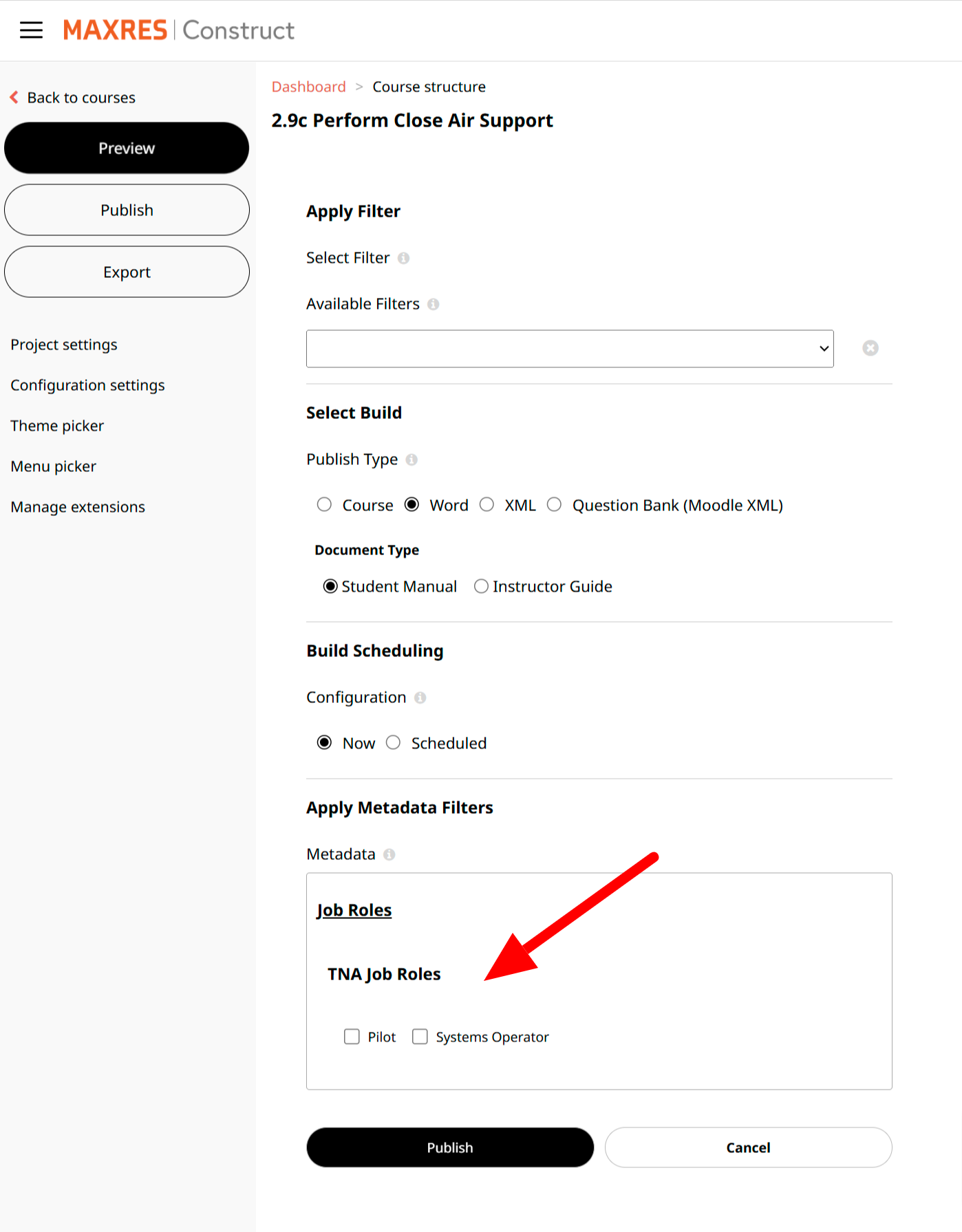 Fig. 13: Metadata Selection
-
-
Publish or Cancel
- Click Publish to generate the Word document, or Cancel to return to the editing view.
3.3. Publishing XML
- The XML publishing functionality is currently unavailable.